To sign and install IPA files using KSign iOS, you first need to import a signing certificate. Normally, you'll need a .p12 certificate file, its password, and a matching .mobileprovision file.
Once you've added these files to KSign, you can use them to sign compatible IPA apps before installing them on your iPhone or iPad.
In this guide, we'll show you how to download and import KSign certificates, sign an IPA and fix common certificate errors.
If you haven't installed KSign yet, follow our KSign iOS installation guide first.
What Is a KSign iOS Certificate?
A KSign iOS certificate is used to sign IPA files so they can be installed on compatible Apple devices.
Unlike Android, where you can install APK files directly, iOS requires apps to be properly signed before installation.
For KSign, you'll normally need these three things:
- .p12 Certificate: Contains the signing certificate and private key used to sign the IPA file.
- .mobileprovision File: A provisioning profile that defines which devices and apps can use the signing certificate.
- Certificate Password: The password used to import your .p12 file. This is different from your Apple Account password.
Make sure your certificate and provisioning profile belong to the same signing setup. Using the wrong files together can cause signing or installation errors.
Also, keep in mind that a certificate can expire or be revoked, so it may not work permanently.
Download KSign iOS Certificates
Before you can sign an IPA, you'll need to download the certificate files.
Below are the available KSign certificate packages. Each ZIP file contains a certificate and provisioning profile.
Download the certificate package you are authorized to use and save it to your iPhone or iPad.
If the files are inside a ZIP archive, open the iOS Files app and extract them first.
You should find the .p12 and .mobileprovision files inside. You'll also need the correct certificate password if the .p12 file is password-protected.
Note: Certificate availability doesn't mean it's currently valid. A certificate may have expired or been revoked, so check its status before using it. Only use signing files from sources you trust and have permission to use.
How to Import a Certificate in KSign iOS
Once you've downloaded and extracted the certificate package, you're ready to import it into KSign.
Follow these steps:
- Open KSign on your iPhone or iPad.
- Go to the Certificates section.
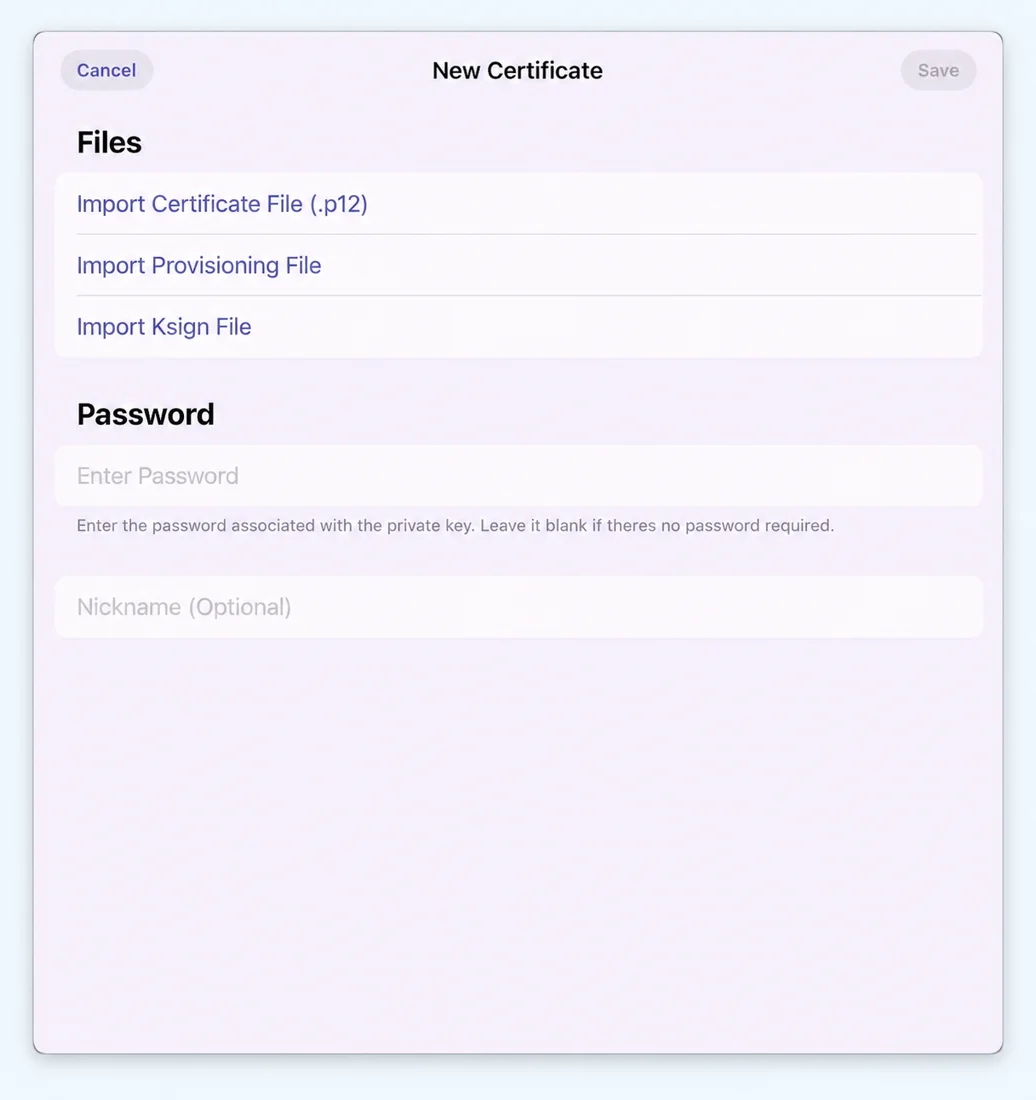
- Tap the + (plus) icon or add button to open New Certificate.
- Tap Import Certificate File and select your .p12 file.
- Next, tap Import Provisioning File and choose the matching .mobileprovision file.
- Enter the certificate password in the password field.
- You can also give your certificate a nickname to identify it easily later.
- Tap Save to finish importing.
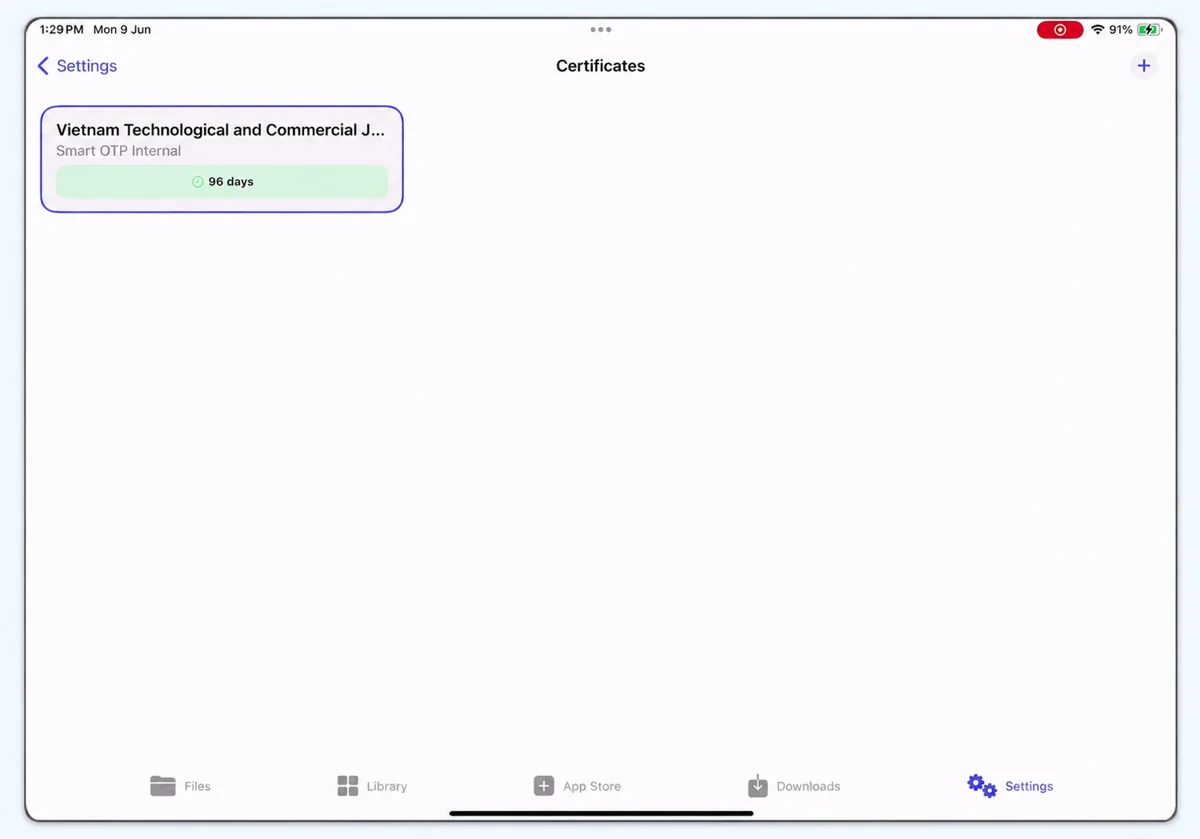
If everything is correct, your certificate should now appear in the KSign Certificates list.
If you see a Bad Password error, double-check the password and make sure you've selected the correct .p12 file.
The interface may look slightly different depending on your KSign version, but the process is mostly the same.
How to Sign an IPA Using a KSign Certificate
Now that you've imported your certificate, you can use it to sign IPA files.
First, make sure you've already imported the IPA into the KSign Library.
- Open the Library tab in KSign.
- Under Downloaded Apps, select the IPA you want to sign.
- Tap Sign or Sign & Install.
- You'll see different options, including Name, Identifier, Version and Signing.
- Under Signing, choose the certificate you imported earlier.
- Keep the original app settings unless you specifically need to change them.
- Tap Start Signing and wait for the process to complete.
Once the IPA is signed, continue with the installation option. When your iPhone asks for confirmation, tap Install.
You can then return to your home screen and wait for the app to finish installing.
For a complete walkthrough, check our How to Use KSign iOS guide.
KSign Certificate Expired or Revoked?
Sometimes your certificate may stop working even if you've already imported it into KSign.
There are two common reasons:
Expired Certificate
Every signing certificate has an expiry date. Once it expires, you may no longer be able to use it to sign apps, and previously installed apps may stop working.
Revoked Certificate
Apple can revoke a certificate before its expiry date. If this happens, apps signed with that certificate may fail to install or open.
You can open the Certificates section in KSign to check the expiry information shown for your imported certificate.
However, seeing a certificate marked as valid doesn't always guarantee that Apple still accepts it.
If your certificate no longer works, you'll generally need a valid replacement certificate and compatible provisioning profile to sign the app again.
Common KSign Certificate Problems
Here are a few common problems you might face while importing or using certificates.
1. KSign Shows Bad Password
This usually happens when you've entered the wrong password for your .p12 file. Make sure you're using the password supplied with that specific certificate.
2. Certificate Not Importing
Check that you've selected both the .p12 and .mobileprovision files. Also, make sure the files aren't corrupted and belong to the same signing setup.
3. IPA Signing Failed
If KSign fails to sign the IPA, check the error message first. The issue could be related to your certificate, provisioning profile or the app's signing requirements.
4. Signed App Not Installing
Even if signing is successful, the app may fail to install if the certificate is invalid, your device isn't supported by the provisioning profile or the IPA isn't compatible with your iOS version.
Frequently Asked Questions
Can I use the same KSign certificate for multiple IPA files?
Yes, you can use the same certificate to sign multiple compatible IPA files, provided the provisioning profile and signing permissions support those apps.
Do KSign certificates work permanently?
No. Certificates have expiry dates and can also be revoked by Apple. If a certificate stops working, you may need to replace it.
What is the password for a KSign certificate?
There is no universal password for every KSign certificate. The password depends on the .p12 file you're using. Check the information supplied with your certificate package.
Can I install IPA files without a certificate?
For the KSign signing method described here, you need a valid signing certificate and a compatible provisioning profile.
Final Words
Importing a certificate into KSign is quite simple once you have the correct files. You just need to add the .p12 certificate, select the matching provisioning profile and enter the password.
After that, you can use the certificate to sign and install compatible IPA files on your iPhone or iPad.
Just make sure your certificate is still valid before signing. If you need another certificate package, you can check the KSign certificate downloads.
 Last updated:

KSign Guide
An independent resource covering app installation, signing files and practical setup for iPhone and iPad.
About this website →